How to Open SPZ, PLY and SPLAT Files on macOS
The fastest way to inspect a Gaussian Splatting scene is to open it in a native viewer. This guide covers the formats you are most likely to receive, how to open them on a Mac and what to try when a file does not appear.
What files can you open
SplatScene opens common 3D Gaussian Splatting formats on macOS:
| Extension | Why you might see it |
|---|---|
.spz | A compressed splat format used by newer tools and pipelines. |
.ply | A common export format from training tools and capture workflows. |
.splat | An uncompressed splat format often shared between tools. |
.sog / .sogs | PlayCanvas-style splat scene formats. |
.ksplat | A splat format used by some desktop and mobile viewers. |
.rad | A splat format you may receive from other scanning or viewer workflows. |
The extension alone does not always tell you the file is ready to view. A .ply file can be a generic point cloud, a mesh or a splat export. Drag it into the app first; the app will tell you whether it can use the file as a scene.
macOS requirements
SplatScene requires macOS 13 Ventura or later on Apple Silicon (M1 or newer). It is a native Mac app, not a web app, so everything stays local. If you are on an older Intel Mac or an unsupported macOS version, this workflow will not be the right fit.
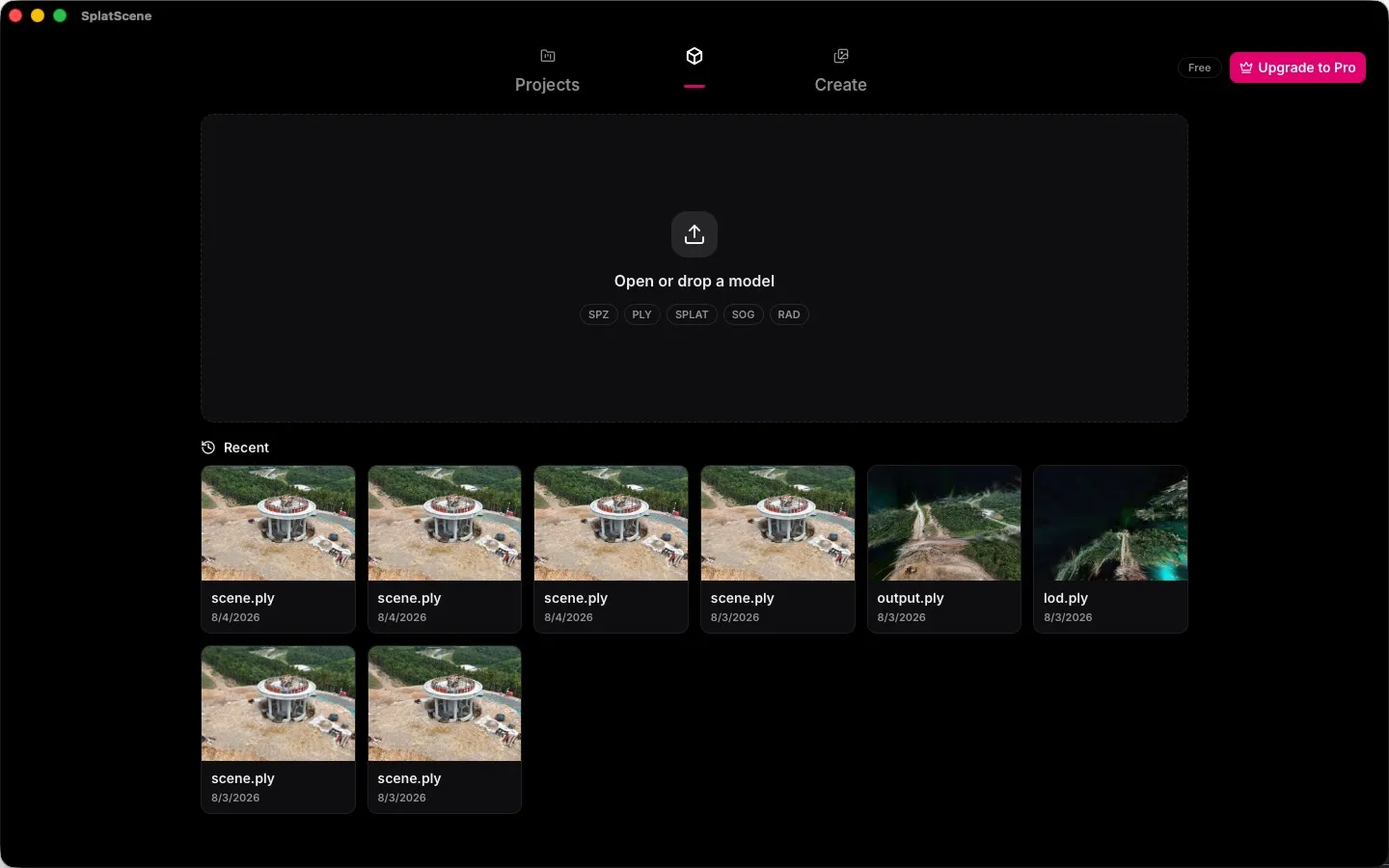
Open with drag and drop
- Install SplatScene from the Mac App Store and open it once.
- Drag a
.spz,.ply,.splator other supported file onto the SplatScene window. - Wait for the scene to load. The first visible frame is your confirmation that the file was recognized.
- Use orbit or fly controls to check the scene from several angles before deciding whether to edit or export it.
Set SplatScene as the default app
If you want to open files by double-clicking in Finder, set SplatScene as the default app for that file type:
- Right-click a supported file in Finder.
- Choose Open With and select SplatScene.
- Right-click the same file again, choose Get Info, find the Open With section, select SplatScene, then click Change All.
- Double-click the file to confirm it opens in SplatScene.
macOS may not show the same Open With menu for every extension on first launch. Drag and drop is the most reliable fallback because it does not depend on Finder file-type associations.
Test with sample files
If you do not have a scene yet, use one of the samples from the SplatScene landing page:
Start with a small sample to learn the viewer. Large capture files can take longer to load and may use significant memory, especially on an 8 GB Mac.
Troubleshooting
The file does not open
Check the basics first:
- Make sure your Mac is on macOS 13 or later with Apple Silicon.
- Make sure the file is a complete download, not a truncated file.
- Try a small known sample to confirm the app works.
- Check whether the file is actually a Gaussian Splatting scene; a
.plyfile can be many other things.
The scene loads slowly
Large scenes can take longer to decode, especially on lower-memory Macs. That is not always a sign of a broken file. Compare the same workflow with a small sample before assuming the file is bad.
You need to convert or export to a different format
SplatScene supports opening the formats listed above, but it is not a general-purpose format converter. Check the app's current export options in the App Store listing or support page before relying on a conversion workflow.
What to do after opening a scene
Once the file opens, you can inspect it locally, clean up floating points, apply built-in effects, and export screenshots, MP4, WebM or GIF clips. SplatScene keeps the core workflow on your Mac. Viewing, effects, editing and the first training run are free, with watermarked captures; Pro ($1/month or $11/year with a 7-day free trial, or $20 lifetime) adds unlimited training, watermark-free capture and PLY export.